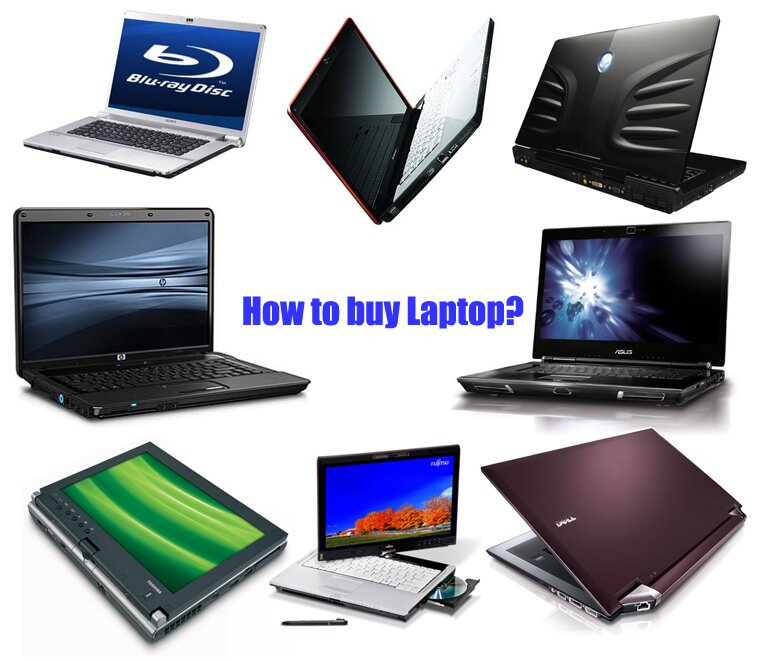
Everybody requires a computer these days. This machine has become an integral part of every ones life. There are many things that we do with the help of the computer. Now-a-days laptops have become the new replacements for personal computers. Laptops have many uses and are portable. They are small and do almost the same work that a PC does. The laptops can be used in the absence of electricity. The market is also flooded with various manufacturers and it has become difficult for one to decide on what model to purchase. Here we have mentioned some tips so that the laptop buying experience will become easy for you.
First of all you need to know the specifications of the laptop. This depends on the reason toy use the laptop for. If you are using the laptop for office purpose you need larger storage. So you can go with a configuration of 2 GB ram and 250 GB hard disk. The processor may be selected based on the work load that you are going to have. If you will be multi tasking you may want to purchase a laptop that has a multi-core processor. There are processors both from Intel and AMD that have multi-cores. You need to make a small survey to choose the best for you.
If you are purchasing the laptop for gaming or entertainment purposes you can purchase a gaming laptop. These laptops have dedicated graphic memory and are also equipped with latest gadgets and DDR3 RAM. These laptops have larger storage ranging from 250 GB to 1000 GB. They have larger memory ranging from 3 GB – 8 GB. These gaming laptops get a bit hotter than the other laptops due to the presence of a dedicated graphics memory. You may need to purchase a cooling pad if you find that the laptop is inconvenient.
If you are a student you also need a laptop. There are many student friendly laptops that are low in cost and high on performance. These laptops have basic minimum specifications. Their memory may not be more than 2 GB and the hard disk will be up to 120 GB. These specifications are apt for a student and one may choose a model depending on his needs. For buying a laptop you need to first visit the show rooms of various manufacturers and then see what company offers what models. You then need to zero on a model depending on the review of the model and other specifications.
You should not rely on public talk. All the manufacturers almost have the same configuration. So you need to do a bit research on the internet and see which laptop computers deals are the best that suits all your performance needs. There are various authentic web sites that conduct a survey of laptops and they tell you the pros and cons of each and every laptop in the market. So you can decide based on the reviews and also you can see the performance of the laptops that your friends and family members may be having. Always buy a laptop after proper research.
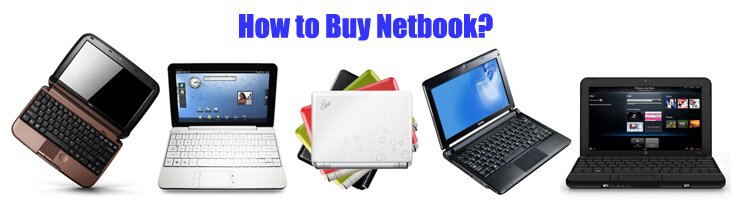
The latest addition to the electronic gadgets is the Netbooks. These Netbooks are laptops that are designed for the user to surf the internet. They are small and light weight. They weigh less than a kilo. These are the best laptops that you can use while you are on the move. They have larger battery life and almost last for 4-5 hours. Some special batteries almost last for 8-10 hours. These are the ideal on the move laptops. They are being used by businessmen and students. All that these Netbooks miss is a DVD drive. You really don’t need a DVD drive when you are on the move. These laptops come with the Intel Atom processor. This is the latest light weight processor that doesn’t take much of a battery and has speeds up to 1.2 GHz to 1.6 GHz.
These Netbooks have become more famous after the success of theAcer Netbook,Asus Netbook,HP Netbook,Dell Netbook,Toshiba Netbook,Samsung Netbook,MSI Netbook, Sony Netbookand Lenovo Netbook. These companies were the first to launch the Netbook commercially and they have enjoyed runaway success in the market share. Acer Netbook is the largest selling Netbook and the company has become the world’s No.1 manufacturer of the Netbooks. These Netbooks are also ideal for students who need to take the laptop to their classes. With the burden of class text books the load of a laptop may be more for a student. Under such conditions the best answer is the Netbook.
To buy a Netbook you first of all need to see what you are expecting from the product. You surely can’t use the Netbook for gaming. So you need to see where you are going to use the product so that you can zero on a model in the market. Mostly people use the net books to give presentations and prepare them. They are also used to surf the internet and do the online work. So if you have just basic requirements you can go for a 1.2 GHz processor and 1 GB RAM with a hard disk capacity of 160 GB. This should serve the purpose.
However if you want a bit more from the Netbook you may want to purchase the one that has 1.6 GHz processor and 2 GB RAM and 250 GB HDD. This may cost a bit more but serves the purpose. These Netbooks don’t come with carry bags and just come with pouch. So you may want to purchase a backpack for the Netbook. You may also want to purchase an external DVD drive because the Netbook does not have one. This may be useful when you want to watch movies and copy data to your DVDs. These external drives are available at nominal rates.
In Internet, you cannot find too many websites and blogs about laptop. However, the number of laptop users is increasing rapidly. After doing some search in Internet, I have compiled here a list 111 tips from different websites and blogs on laptop. I have just stated the title of a tip or have given first few words (in the absence of a title) of the tips from the articles used here. So, if you want to know about the tips in details, you should follow the links and visit the websites and blogs.
These tips are really useful and they have come often from the experts. So, if you are a laptop user or if you are thinking of buying a laptop then I would recommend you to spend some hours of your life and read all the tips in detail.
1- 8 tips fromLifehacker:
1. Extend your battery life
2. Save your keyboard and screen
3. Keep it cool
4. Work offline
5. Secure your data
6. Carry it well
7. Back up when you get home
8. Pack some helpful extras
2- Top 10 Cold Weather Tips for Laptops fromMobile Office Tech of About.com:
9. Ruggedized Laptops
10. Careful Storage
11. Let It Warm Up
12. Incorrect Warming Methods
13. Laptop Warmers
14. Excessive Heat Build-Up
15. Protecting Your Display
16. Stay Out of the Cold
17. Change Power Settings
18. Don't Get Creative
3- Top 8 Airline Travel Tips When Traveling with Your Laptop fromMobile Office Tech of About.com:
19. Carry your Laptop or Pack It Away?
20. Visual Inspection (Hand checking)
21. Should You X-Ray Your Laptop?
22. Carry Proper Documents
23. Keep a Low Profile
24. Don't Let Your Laptop Out of Sight
25. Fact or Fiction - The Airport Laptop Scam
26. Keep Your Laptop Case Locked
4- 3 Laptop Tips fromoverclockers
27. Always try to fork out the extra dough for an extended warrantee
28. Buy a laptop cooler (This is especially true for those with the desktop replacement types.)
29. Get some sort of padded carrying pack for the laptop.
5- 19 Laptop Tips from5starsupport:
30. Make sure that you always use a surge protector
31. Don't get into a habit of leaving your laptop on the floor
32. Never leave your laptop in a cold environment.
33. Never keep your paperwork between the screen and keypad
34. Avoid placing your laptop on soft surfaces
35. be sure to purchase a good quality carrying case for your laptop's protection
36. Never drink liquids when working with your laptop
37. Never work on your own laptop unless you are a qualified professional
Laptop travel tips:
38. Make sure that you are familiar with your laptop before you depart on a trip
39. Carry your laptop in a bag designed for laptop computers
40. In hotel rooms, many of the devices (alarm clock, hair drier, television etc.) contain magnets that can damage your data
41. Use extra caution when drinking anything near your laptop computer
42. Never check your laptop computer as luggage on an airline, bus, etc
43. The x-ray machines at the airports will not damage your computer or your media
44. On long trans-Pacific flights, ask to be seated at an emergency exit because there is a 110 Volt/AC outlet right in front of each exit door in the outside wall of Boeing 747s where you can plug in
45. If you use a PC card modem, (1) always carry one as a spare even if your laptop has an internal modem, and (2) either use one with an X-jack connector or bring an extra dongle
46. Take your purchase receipt along if you're traveling to a foreign country
47. Make sure you know the power type and the plug type requirements for the country you are traveling to
48. Charge all your batteries before you leave on a trip
6- 9 Laptop battery tips for power users fromHowToBuyALaptop:
49. Save battery power by minimizing use of the CD drive, and particularly the DVD drive
50. Turn the monitor down to lowest brightness level, and turn off screensavers
51. Turn off the Wireless port when you're not using wireless connectivity
52. Remove all PC cards from their slots when not in use
53. Use your laptop's built-in power management system and select low-power mode
54. Carry a spare battery and keep it charged overnight
55. Preserve battery life by allowing your battery to fully drain before you recharge it
56. Suspend' rather than reboot if you're only taking a short break
57. Take advantage of drive time by recharging your laptop battery in your car
7- 15 Laptop computer security advice fromHowToBuyALaptop:
58. Make a note of your laptop's serial number and store it in a safe place.
59. Use Robo Form to store your passwords securely.
60. Keep your laptop well away from magnetic sources like television sets.
61. Backup your work every day when you're on the road.
62. Backup to floppy disk or CD and keep separate from laptop equipment.
63. Consider buying (or upgrading to) Windows XP Professional, which has built-in data encryption.
64. Use a security cable lock (fits into the laptop's keyhole) and fix it to something sturdy and immovable anytime you're not with your laptop.
65. If you have to sleep somewhere public like an airport lounge then secure your laptop to your seat via your security cable before you nod off.
66. Use the secure cable lock around your home and office too.
67. Pack your laptop into a sports bag or ordinary briefcase, instead of the standard laptop case.
68. Exercise extreme caution in the security section at airports, where many laptops get stolen.
69. Don't carry your laptop through the "human" metal detector as these can damage computer data.
70. Stay in physical contact with your laptop at all times, particularly in crowded places.
71. When you're not in your hotel room, ask to have your laptop locked in the hotel's safe.
72. Never leave a laptop / case on view in a locked car.
9- 9 Laptop Repair Tips fromlaptopmedic:
82. Do Not Download FREE Software / Music.
83. Always keep Laptops off floor.
84. Always use a surge protector.
85. Don't keep paper work in between screen and keypad.
86. Never leave your laptop in a cold environment.
87. Don't place your laptop on soft surfaces.
88. Don't drop it while your carrying it.
89. Never drink coffee or any liquid around your laptop.
90. Lastly never try to fix your laptop yourself.
11- 16 laptop Tips to protect your health fromworking-well:
96. Attach an external mouse and keyboard whenever possible.
97. Keep the keyboard and mouse at the edge of the worksurface that is set 1" below or equal to your sitting elbow height.
98. Move the laptop close enough so you do not hold your head forward to see what is on the screen.
99. Raise the laptop so the top of the screen is at your straight-ahead vision.
100. Sit back in the chair and keep your head directly over your shoulders.
101. Do not lean on the worksurface while typing; keep your elbows in line with your shoulders, hanging loosely at your sides.
102. Never drop your wrists on the "wristrest" of the laptop.
103. Use keyboard commands whenever possible.
104. Avoid reflective lighting.
105. Keep screen clean at all times.
When traveling (with a laptop):
106. Refrain from packing non-essential items or extra gadgets.
107. Avoid working on the hotel bed or at a high table.
108. Use a small pillow to support your lower back in the car/on the plane.
109. Carry the laptop in a backpack instead of a shoulder or handbag.
110. If you must use the laptop without external devices and monitor stand, it is best used in your lap (as it was designed!) or on a worksurface no higher than 27".
111. Support your feet with a portable footrest.
If you feel that I have mistakenly used your material without giving proper links, please let me know in the comment section and I will acknowledge it right away.
Does yourlaptopcomputerrestart on its own after a few minutes of use? Does it make loud noises? Does it experience read/write errors, or indicate that a disk has failed to respond? Does it generate excessive heat? If so, your laptop is probably in need of cleaning.
When dust, hair, and debris clog the air inlet and outlet, or theheatsink, your laptop may overheat, damaging the components inside. An unusually hot base, very hot air coming from the outlets, and the computer shutting itself off are all signs that the laptop is overheating. When those things happen, it is time to clean the laptop.
Unlike adesktopcomputer, laptops are difficult to open and clean. Before you attempt to clean your laptop, keep in mind that there are tiny screws and parts, and they are easily dropped and lost. If you are not computer hardware literate, it's best to take your laptop to a professional to have the inside components cleaned. Follow these steps to clean your laptop computer:
Use a soft, damp cloth to clean the case. Do not use household cleaning products. If there is residue that you cannot remove with water, use rubbing alcohol.
Using cotton swabs, clean the openings of the laptop. Usually located on the sides, back, or bottom of the laptop, these openings draw in cool air and expel hot air, and can become clogged with dirt, dust, and hair.
Since you cannot remove the keys of a laptopkeyboard, use a soft, damp cloth to clean them. You may also used compressed air to spray away dust or hair from between the keys.
Use a soft, damp cloth to clean the laptop touchpad (mouse).
Laptops have LCD flat panel displays, and are not made of glass. Never spray liquid directly onto the LCD, and do not use paper towels to clean it since it may etch the surface. Use a soft, dry cloth to clean the display. If you have ink marks on your display, clean the LCD with rubbing alcohol on a soft cloth.
If you are extremely knowledgeable about computer hardware, you can attempt to open your laptop to clean it. Keep in mind that some manufacturers will void the warranty if you attempt to open your laptop. To clean the inside, remove the fan cover, remove the inner core, and then vacuum. There may be a large accumulation of dust inside, so do not be surprised.
After you're finished cleaning, reassemble your laptop.
When you clean your laptop, make sure that you schedule time to do it correctly. If you are in a hurry, you may not do a thorough job, or you may lose parts, rendering your laptop inoperable.